Microsoft Teamsの予期しないダウンロードエラーを修正する方法
Microsoft Teamsのダウンロードエラー「予期せぬエラー」でワークフローが滞っていませんか?専門家によるステップバイステップガイドと、クイックフィックスと高度なヒントで、すぐに問題を解決できます。再インストールは不要です!
Windows offers many security features such as login password, minimum and maximum password age etc. which are essential for any operating system. The main problem comes when a PC with a single administrator account manages a lot of user accounts. A minimum password age prevents users from changing password too frequently as it can lead to user forgetting passwords more often, which leads to more headache for the administrator. And if the PC is used by a lot of users or children such as in the case of a PC in Computer lab, you need to prevent users from changing the password in Windows 10 as they can set a password that won’t let other user logins into that PC.
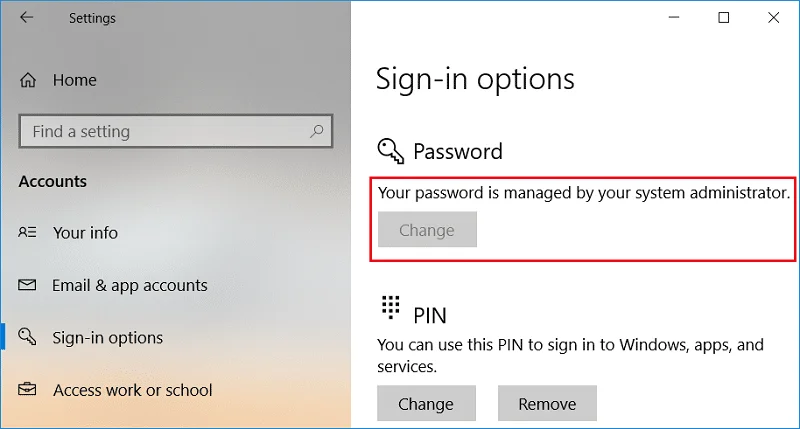
One of the best features of Windows 10 is that it allows the administrator to prevent other users from changing their account password. However, it still allows the administrator to change, reset, or remove their account password. This feature is handy for guest accounts or child accounts, anyway without wasting any time let’s see How to Prevent Users from Changing Password in Windows 10 with the help of the below-listed tutorial.
Note: You need to sign in with the administrator account to prevent other user accounts from changing their password. You will also only be able to apply this to local user accounts and not to administrator accounts. Users using Microsoft account will still be able to change their passwords online at Microsoft website.
Contents
Make sure to create a restore point just in case something goes wrong.
1. Press Windows Key + R then type regedit and hit Enter.

2. Navigate to the following Registry Key:
HKEY_CURRENT_USER\Software\Microsoft\Windows\CurrentVersion\Policies
3. Right-click on Policies then selects New > DWORD (32-bit) Value.
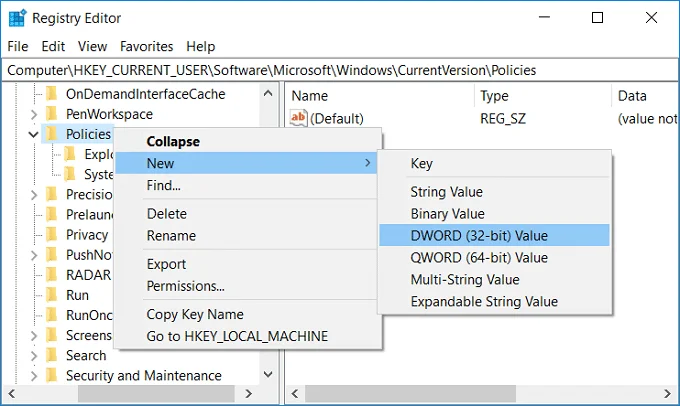
4. Name this new DWORD as DisableChangePassword then double-clicks on it to change its value.
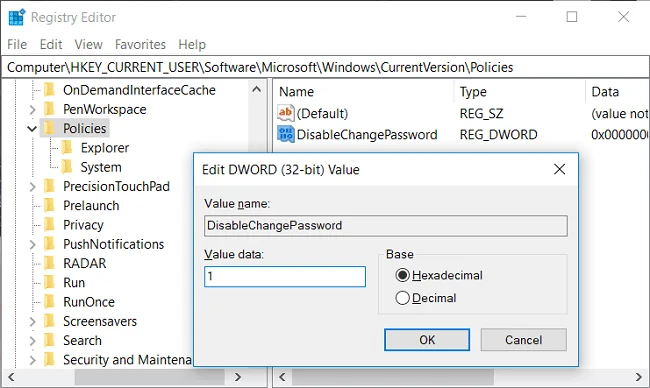
5. In the value data field type 1 then hit Enter or click OK.
6. Reboot your PC to save changes.
Finally, you have learned How to Prevent Users from Changing Password in Windows 10 using Registry Editor, if you want to continue to the next method, it will override the changes made by this method.
Note: This method only works in Windows 10 Pro, Enterprise, and Education Edition.
1. Press Windows Key + R then type lusrmgr.msc and hit Enter.

2. Expand Local Users and Groups (Local) then select Users.

3. Now in the right window pane right-click on the user account for which you want to prevent password change and select Properties.
4. Checkmark “User cannot change password” then click Apply followed by OK.
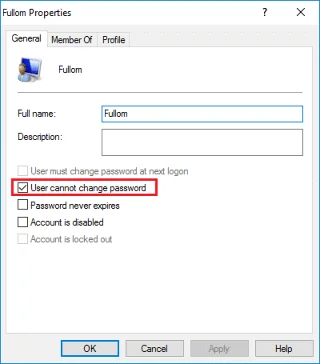
5. Reboot your PC to save changes and this How to Prevent Users from Changing Password in Windows 10.
1. Open Command Prompt. The user can perform this step by searching for ‘cmd’ and then press Enter.

2. Type the following command into cmd and hit Enter.
net users

3. The above command will show you a list of user accounts available on your PC.
4. Now to prevent user from changing password type the following command:
ネットユーザーuser_name / PasswordChg:No
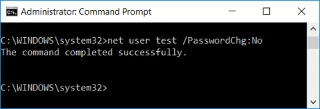
注: user_nameを実際のアカウントのユーザー名に置き換えてください。
5.将来、ユーザーにパスワード変更権限を再度付与する場合は、次のコマンドを使用します。
ネットユーザーuser_name / PasswordChg:はい
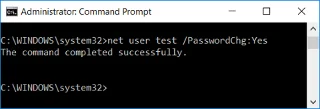
注: user_nameを実際のアカウントのユーザー名に置き換えてください。
6. PCを再起動して、変更を保存します。
1.Windowsキー+ Rを押してから、gpedit.mscと入力し、Enterキーを押します。

2.次のパスに移動します。
ユーザー構成>管理用テンプレート>システム> Ctrl + Alt + Delオプション
3.右側のウィンドウペインで[ Ctrl + Alt + Delオプション]を選択し、[パスワードの変更を削除]をダブルクリックします。
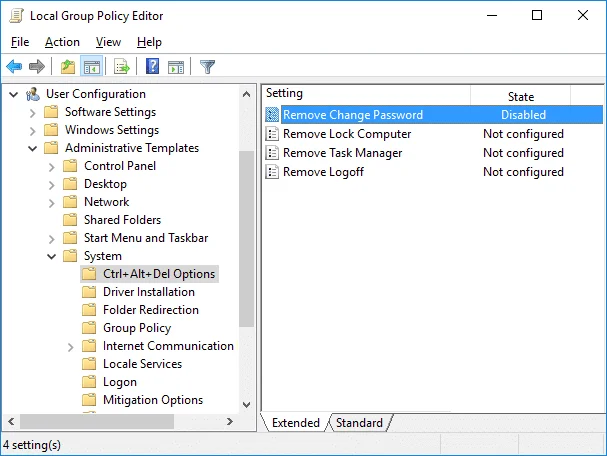
4. [有効]チェックボックスをオンにして、[適用]、[OK]の順にクリックします。
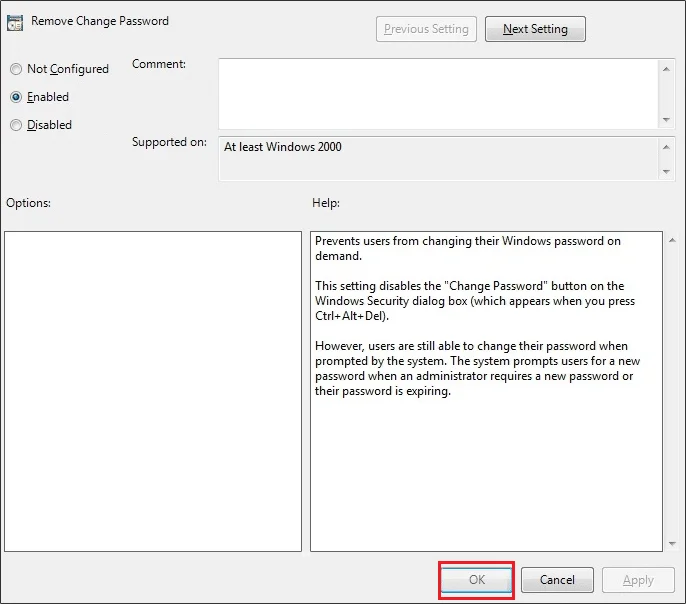
このポリシー設定は、ユーザーがWindowsパスワードをオンデマンドで変更できないようにします。このポリシー設定を有効にすると、Ctrl + Alt + Delを押しても、[Windowsセキュリティ]ダイアログボックスの[パスワードの変更]ボタンは表示されません。ただし、ユーザーはシステムからのプロンプトが表示されたときにパスワードを変更できます。管理者が新しいパスワードを要求した場合、またはパスワードの有効期限が切れると、システムはユーザーに新しいパスワードの入力を求めます。
5. PCを再起動して、変更を保存します。
おすすめされた:
これで、Windows 10でユーザーがパスワードを変更できないようにする方法を習得できましたが、このチュートリアルに関してまだ質問がある場合は、コメントのセクションで気軽に質問してください。
Microsoft Teamsのダウンロードエラー「予期せぬエラー」でワークフローが滞っていませんか?専門家によるステップバイステップガイドと、クイックフィックスと高度なヒントで、すぐに問題を解決できます。再インストールは不要です!
Teams 会議でブレイクアウトルームが表示されなくて困っていませんか?Teams でブレイクアウトルームが表示されない主な原因を解説します。ステップバイステップの解決方法に従って、数分でスムーズに機能するようにしましょう。主催者にも参加者にも最適です!
Microsoft Teams OneDriveのファイル同期エラーにうんざりしていませんか?ステップバイステップガイドに従って、Microsoft Teams OneDriveのファイル同期エラーを素早く解決しましょう。Teamsチャンネルでのスムーズな共同作業に役立つ実証済みの修正プログラムをご用意しています。今すぐエラーのないファイル同期を実現しましょう!
Microsoft Teamsがハードエラーでクラッシュするのにうんざりしていませんか? わずか数分で解決できる、実績のある2026レジストリ修正プログラムを入手しましょう。ステップバイステップガイド、スクリーンショット、そして永続的な問題解決のためのヒントをご紹介します。最新バージョンで動作します!
Microsoft Teamsチュートリアルヘルプのエラーでお困りですか?このよくある問題に対する、実証済みのステップバイステップの解決策をご覧ください。キャッシュをクリアし、Teamsを更新するなど、すぐにシームレスなコラボレーションを取り戻しましょう!
Microsoft Teamsでエラーが発生していますか?このMicrosoft Teamsのトラブルシューティングガイドでは、エラーを迅速に解決するための最初のチェックポイントをステップバイステップでご紹介します。接続、キャッシュ、アップデートに関するクイックフィックスで、スムーズなチャットを再開できます。
Outlook に Microsoft Teams アドインが表示されなくて困っていませんか?主な原因と簡単なステップバイステップの修正方法をご紹介します。Teams と Outlook のシームレスな連携を簡単に復元できます。最新バージョンでご利用いただけます。
公共Wi-FiでMicrosoft Teamsのネットワークエラーに悩まされていませんか?VPNの調整、ポートチェック、キャッシュクリアなどの即時修正で、通話や会議をスムーズに復旧できます。ステップバイステップガイドですぐに問題を解決できます。
Microsoft Teamsのステータスが「離席中」のままになって困っていませんか?アイドルタイムアウトや電源設定など、よくある原因と、すぐに「対応可能」に戻すためのステップバイステップの修正方法をご紹介します。最新のTeams機能にアップデートしました。
Microsoft Teamsのようこそ画面の起動ループに悩まされていませんか?Microsoft Teamsのようこそ画面の起動ループを解消するための実証済みのトラブルシューティング手順をお試しください。キャッシュのクリア、アプリのリセット、再インストールが可能です。数分でシームレスなコラボレーション環境を取り戻せます!