PC向け最高の写真整理ソフト TOP 5
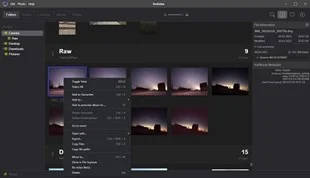
PCのハードドライブに数千枚の写真が溜まり、フォルダ名がめちゃくちゃで欲しい写真を探すのが大変なら、本当にストレスですよね。全体のアルバムを漁るのも時間の無駄です。専門の写真整理プログラムがこの問題を完璧に解決してくれます。
Imagine your Windows 11 PC running smoother, your battery lasting longer, and those resource-hungry apps no longer slowing you down. That's the power of Efficiency Mode in Windows 11 Task Manager. This hidden gem is designed to help you reclaim control over your system's resources, making it a must-have tool for gamers, professionals, and everyday users alike. In this guide, we'll dive straight into how to use Windows 11 Task Manager Efficiency Mode effectively, with practical steps and insider tips to supercharge your workflow. Ready to boost your PC's efficiency? Let's get started! 😊
Efficiency Mode is a smart feature introduced in the latest Windows 11 updates to limit the CPU and memory usage of background processes and apps. It prioritizes your active tasks by throttling non-essential ones, reducing power consumption and heat generation. Think of it as a traffic cop for your system's resources—directing energy where it matters most.
Why does this matter? In a world of multitasking, apps like browsers with dozens of tabs or background sync tools can hog resources, leading to lag and shorter battery life on laptops. Activating Efficiency Mode can improve overall performance by up to 20-30% in resource-intensive scenarios, based on Microsoft's own testing. It's especially useful for hybrid work setups or gaming sessions where every bit of efficiency counts.

Getting started with Windows 11 Task Manager Efficiency Mode is straightforward. No need for third-party tools—just your built-in Task Manager. Follow these simple steps to locate and activate it:
Pro Tip: For a broader view, switch to the "Details" tab. Here, you can apply Efficiency Mode to system-level processes too, but be cautious with critical ones like explorer.exe to avoid unintended glitches.
Simply toggling Efficiency Mode is a great start, but to truly master it, integrate these strategies into your daily routine. We'll keep it focused on actionable advice to help you maintain peak Windows 11 performance.
Remember, Efficiency Mode isn't a kill switch—processes still run, just with reduced priority. If an app feels sluggish, simply disable it by right-clicking again. This balance keeps your system responsive without sacrificing functionality.
Even with the best tools, pitfalls happen. Here's how to sidestep them and keep your Windows 11 Task Manager workflow smooth:
| Common Issue | Why It Happens | Quick Fix |
|---|---|---|
| Efficiency Mode Not Available | Outdated Windows version or app incompatibility. | Update Windows via Settings > Update & Security. Ensure you're on the latest build for full Efficiency Mode support. |
| App Performance Drops Too Much | Over-throttling essential tasks. | Disable for foreground apps only. Use Task Manager's "Set priority" option for fine-tuning instead. |
| No Noticeable Improvement | Few resource-intensive processes. | Close unnecessary startups via the Startup tab. Combine with Efficiency Mode for compounded gains. |
If issues persist, restart Task Manager or your PC. For deeper insights, check Microsoft's official documentation on Task Manager features.
By now, you see how Windows 11 Task Manager Efficiency Mode transforms everyday computing. It's not just about speed—it's about sustainability. Reduce your PC's energy footprint while enjoying snappier responses, and feel that satisfying sense of control over your digital life. Whether you're editing videos, browsing endlessly, or just keeping things running smoothly, this feature empowers you to do more with less.
Curious for more? Experiment with combining Efficiency Mode with Windows 11's other optimizations, like power plans or storage sense, to create an ultra-efficient setup. Your future self (and battery) will thank you. What's your first process to optimize? Share in the comments below—we'd love to hear how it boosts your day! 👏
For the latest on Windows features, stay tuned to official sources like Microsoft's Windows 11 page. Happy optimizing!
PCのハードドライブに数千枚の写真が溜まり、フォルダ名がめちゃくちゃで欲しい写真を探すのが大変なら、本当にストレスですよね。全体のアルバムを漁るのも時間の無駄です。専門の写真整理プログラムがこの問題を完璧に解決してくれます。
Windows で Win+G ショートカットが機能しないのは困りものですか? 簡単な再起動から高度な解決策まで、ゲーム バーの問題に関する実証済みのトラブルシューティング手順を見つけて、ゲーム ツールバーを簡単に復元しましょう。
Windows 11のネットワークブリッジエラーでお困りですか?この包括的なガイドでは、接続の問題を解決し、ネットワーク設定を最適化して、迅速にオンライン状態に戻るための実証済みのトラブルシューティング手順をご案内します。シームレスなブリッジ接続のための専門家のヒントもご覧ください。
Windows 11 で Android Studio エミュレータのエラーに悩まされていませんか?クラッシュ、ブラックスクリーン、HAXM のエラーといったよくある問題に対する実証済みの解決策をご紹介します。今すぐ開発環境をスムーズに稼働させましょう。
Windows 11のストレージセンスを活用して、不要なファイルを自動的に削除し、ストレージを管理し、PCをスムーズに動作させる方法をご紹介します。最適な結果を得るためのヒントを交えたステップバイステップガイドです。
Windows 11でDiscordのアップデートループやクラッシュに悩まされていませんか?実証済みのステップバイステップの解決策で、問題を迅速に解決し、シームレスなゲームチャットを取り戻しましょう。最新の2026パッチにアップデートされています。
マルチGPU構成のWindows 11で透明化の問題に悩まされていませんか?スムーズな映像を復元し、パフォーマンスを向上させ、ちらつきを解消する実証済みの解決策をご紹介します。ゲーマーとクリエイターのためのステップバイステップガイドです。
Windows 11でPowerShell ISEの非推奨エラーに悩まされていませんか?実証済みのステップバイステップの解決策で、スクリプト作成のパワーを回復しましょう。もうイライラする必要はありません。今すぐスムーズにコーディングに戻りましょう!
Windows 11のTaskbarXでアイコンが中央揃えにならないエラーでお困りですか?タスクバーのアイコンを簡単に再配置するためのステップバイステップの修正方法をご紹介します。最新の調整でシームレスな体験を実現します。
Windows 11 ノートパソコンのバッテリー残量が減らなくてお困りですか?この厄介な問題を解決し、バッテリー寿命を楽々と最適化する実証済みの解決策をご紹介します。ステップバイステップのガイド付き。